Arrows, pictures, text boxes and a lot of colour as a way to organise ideas.
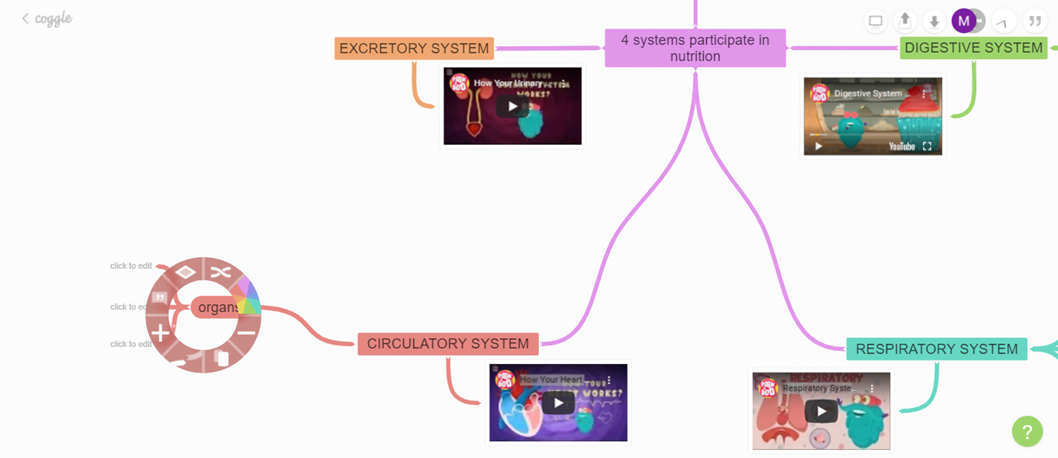
Mindmaps are an amazing tool, specially for learning. In my case, I wanted to make a project to learn the vital function of nutrition in Natural Sciences. The tool I used is coggle. This is an online plattform that allows the user to create mindmaps, even collaboratively! In my case, I used it to create a mindmap to be used collaboratively between the teacher and the students.
The students from 6th grade would be divided in 4 teams and be given access to this mindmap. Using the links provided, their task is to complete their part of the mindmap, adding branches and categories if necessary.
Critical questions and problems encountered
I felt completely lost at the beginning, the only thing I saw in my screen was this:
My intuition told me to click on the square right at the middle of the screen, I did it and I started playing with the features:
The A symbol allows you to edit the text (bold, italics, how it is alligned and images), the link allows you to link websites, the image is for adding images and the lightning symbol lets you add emojis.
Discoveries
When I was halfway done, I discovered that you can change the colour and shape of the branches and the text boxes clicking with the right button. That was a huge discovery, as I am a very visual person and I rely a lot on colour. However, the options are limited for the free version.
Uses or connections
The example I gave provides a great use for this tool, allowing for cooperative work between students. However, it is not necessary to have ICT resources in the classroom to use mindmaps; for example, they can be created by the teacher leaving blank spaces, print them and hand them in to complete during class.
Another use is as a student myself, you can organise group works or your own projects thanks to this tool, facilitating visualisation of the whole picture.
Martyrating
🌙🌙🌙🌙🌙
Pros:
- Collaborative work.
- Links and pictures can be added.
- Text size personalisation.
- Moving branches and text.
Cons:
- Limited range of colours and shapes for the free version.
- It is hard to get the hang of it at first.
That was it for today's post!